> ## Documentation Index
> Fetch the complete documentation index at: https://julius.ai/docs/llms.txt
> Use this file to discover all available pages before exploring further.
# Files
> Learn what files are in Julius, what file types are supported, how long files last for, and how to delete and interact with your files.
**Files** are the basic building blocks of your work in Julius. This includes
both the documents and data you upload, as well as any outputs generated during
the analysis with Julius. You can see all your files here:
[Julius Files](https://julius.ai/files).
You can upload various file types to Julius. Here are some of the common types that are supported:
#### **Data Files**
* CSV (.csv)
* Excel (.xlsx, .xls)
* JSON (.json)
* Parquet (.parquet)
* Feather (.feather)
* SQLite (.db, .sqlite)
* SPSS (.sav)
#### **Text Files**
* Text (.txt)
* Markdown (.md)
* PDF (.pdf)
#### **Image Files**
* PNG (.png)
* JPEG/JPG (.jpg, .jpeg)
* HEIC (.heic)
* WebP (.webp)
* GIF (.gif)
#### **Code Files**
* Python (.py)
* Jupyter Notebooks (.ipynb)
* R (.r)
* SQL (.sql)
### Google Sheets & Other File Connectors
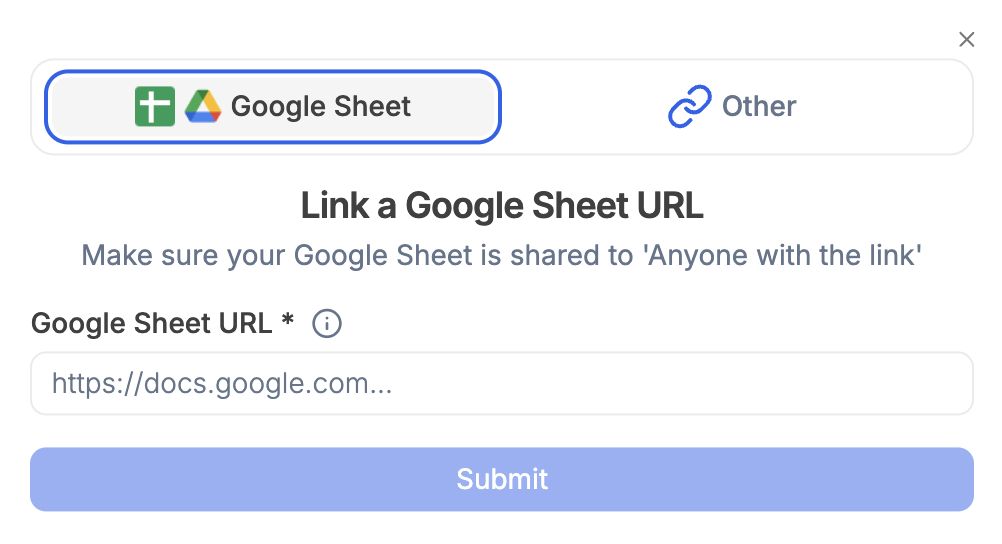
You can link directly to a Google Sheet or a file hosted on any URL.
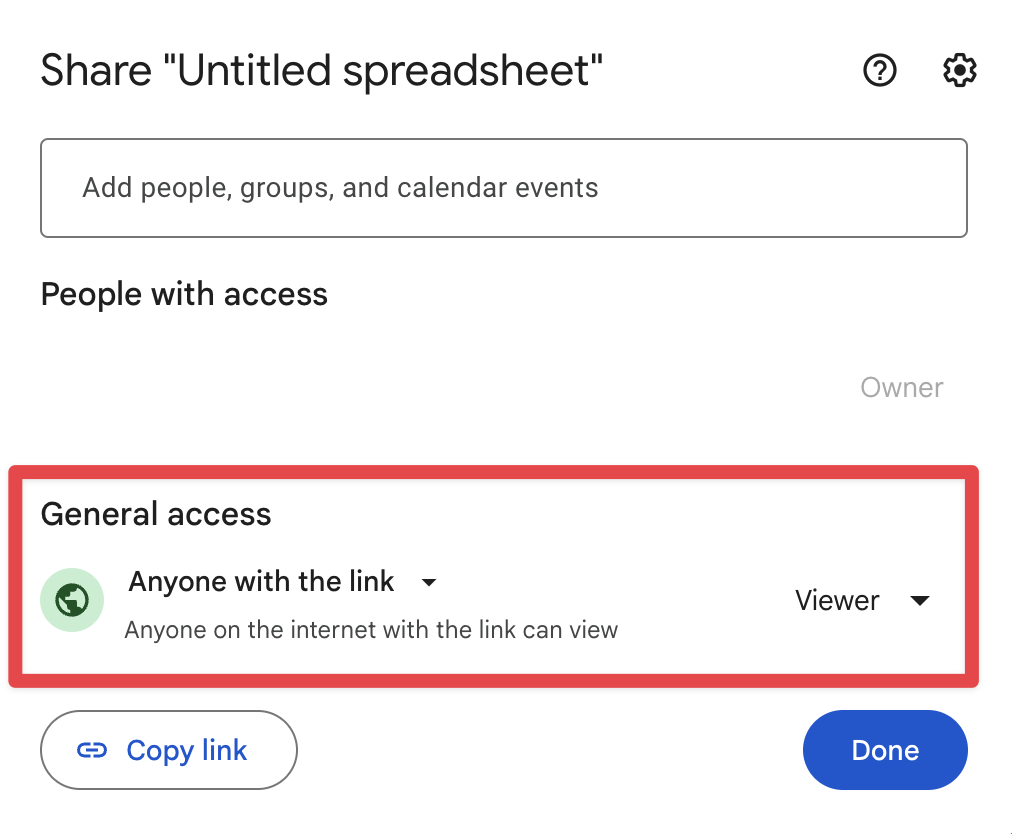
Open your Google Sheet, click **Share**, and ensure that **"Anyone with the link"** is set to **Viewer**.
Ensure that the Sheets link follows this format:
```
https://docs.google.com/spreadsheets/d/EXAMPLE123456789/edit?usp=sharing
```
or the Drive link to the sheet follows this format:
```
https://drive.google.com/file/d/EXAMPLE123456789/view?usp=sharing
```
Click the **Submit** button to connect your Google Sheet to Julius.
### File Persistence Policy
* **Free-tier users:** Files are retained for up to **1 hour of inactivity**,
after which all uploaded and AI-generated files are deleted.
* **Paid users:** Files remain available for up to **7 days of inactivity**.
You can delete your files at any time on the [My
Files](https://julius.ai/files) page. Select the files and click
**Delete**.{' '}