> ## Documentation Index
> Fetch the complete documentation index at: https://julius.ai/docs/llms.txt
> Use this file to discover all available pages before exploring further.
# Secret Keys and Connections
> Learn how to set up and call external APIs easily in Julius
### Julius lets you integrate with and pull data from your favorite tools.
This guide uses the Stripe API as an example to show you how to connect an external API to Julius.
Julius supports calling APIs -- at this time however Julius itself cannot be called via API
* In this case, we'll walk you through the [instructions for getting an API key from Stripe](https://stripe.com/docs/keys); however, this step will vary according to your specific need.
* Access your Stripe Developers Dashboard and select the "API keys" tab.
* In the Standard keys list or Restricted keys list, in the row for the key you want to reveal (in this case, it’s the Standard keys list), click “Reveal live key”.
* Once the key is visible, copy its value by clicking on it.
1. Start a [new conversation](https://julius.ai/chat) in Julius
2. In the conversation window, click on the "Chat Settings" button, typically located in the upper right section
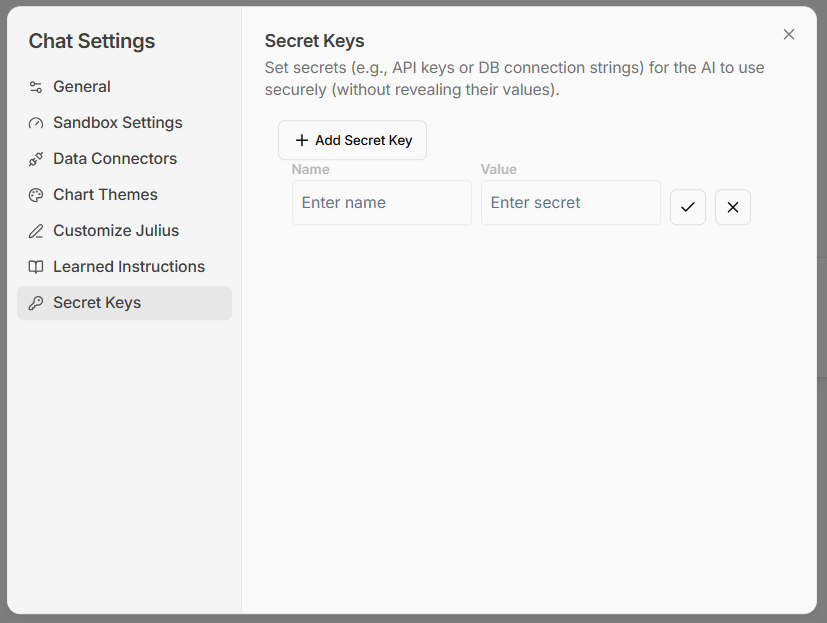
3. Navigate to the "Secret Keys" section, designed for inputting external API keys
4. Set a name for this API key
5. Paste the Stripe API key you copied earlier into the Value
field
6. Click the Checkmark to save this API key
1. Navigate to Chat Settings -> Secret Keys.
2. Set a name for this API key
3. Paste the Stripe API key you copied earlier into the Value
field
4. Click the Checkmark to save this API key
1. Navigate to a [new conversation](https://julius.ai/chat)
2. Inform Julius that you've added the Stripe API key
3. Now, you're all set to ask Julius to pull specific data from Stripe, be it transaction details, customer data, or any other relevant information.
Once connected, you can pull data from tools like Stripe directly into Julius for analysis.
***
Reach out to [**team@julius.ai**](mailto:team@julius.ai) for support or to ask questions not answered in our documentation.
 2. Set a name for this API key
3. Paste the Stripe API key you copied earlier into the
2. Set a name for this API key
3. Paste the Stripe API key you copied earlier into the