> ## Documentation Index
> Fetch the complete documentation index at: https://julius.ai/docs/llms.txt
> Use this file to discover all available pages before exploring further.
# Overview
> Learn how to securely connect Julius to your data warehouses and databases to analyze your data directly without uploading files.
## What is a Data Connector?
A **Data Connector** lets you connect Julius to your data warehouses (PostgreSQL, BigQuery, Snowflake, etc.) by providing your database credentials. You can then analyze your data directly without downloading and uploading files.
Once a connector is enabled, it's available for your entire chat session. Julius can access and query your data across all messages in that session.
## Benefits of Using Data Connectors
* **Real-time Analysis:** Query live data directly from your production databases
* **No File Management:** Skip the hassle of downloading, uploading, and managing data files
* **Always Up-to-Date:** Work with the latest data without manual exports
* **Secure Connection:** Your credentials are encrypted and your data never leaves your control
* **Team Collaboration:** Share access to the same data sources across your team
* **Scheduled insights:** Set scheduled runs on Notebooks to automate analysis, and share your results directly via slack or email
## Getting to Data Connectors Settings
1. Navigate to your **Settings** by clicking on your profile in the top right corner
2. Select **Data Connectors** from the settings menu
3. Or go directly to: [julius.ai/settings/data\_connectors](https://julius.ai/settings/data_connectors)
## Supported Database Types
Julius currently supports connections to the following database types:
Connect to PostgreSQL databases and data warehouses
Connect to MySQL databases
Connect to Microsoft SQL Server
Connect to Snowflake cloud data warehouse
Connect to Google BigQuery data warehouse
Connect to Databricks for SQL warehouses and Unity Catalog
Connect to Supabase-hosted Postgres
Connect to Vertica analytic databases
Connect to Google Ads for campaign analysis and optimization
Connect to Meta (Facebook/Instagram) Ads for social advertising insights
## Built-in Data Tools
Beyond the connectors you set up yourself, Julius has built-in tools that reach external data on your behalf , no configuration required. Julius decides when to use them based on your question.
Julius can search the live web for news, background, documentation, and other fresh information using a native web search tool. Results are grounded with citations, and searches can be scoped to specific domains via custom agents.
Julius can pull US equity data , fundamentals, filings (10-K/10-Q/8-K), earnings, insider trades, institutional holdings, historical prices, and interest rates , directly into your chat for analysis.
Built-in tools run on Julius credits , the same usage-based system as the rest of Julius. No separate plan or setup required.
## Security & Trust
* **SOC 2 Type 2 Certified:** Julius meets strict security standards for handling sensitive data
* **Encryption:** All credentials and data are encrypted both in transit and at rest
* **No Data Storage:** Julius doesn't permanently store your data - it only queries what you request
* **Access Control:** Only you can access connections you create
Visit our Security & Trust Center to learn more about how Julius protects your data and maintains compliance standards.
## How Data Connectors Work
1. **Setup:** Provide your database credentials through our secure connection form
2. **Connect:** Julius establishes an encrypted connection to your database
3. **Query:** Ask Julius questions about your data in natural language
4. **Analyze:** Julius writes and executes SQL queries automatically
5. **Visualize:** Get results, charts, and insights without writing any code
Always coordinate with your database administrator when setting up data connectors to ensure proper security and performance guidelines are followed.
## Sharing your Data-Connection with your Team
If you have a Team and want to set up the Data Connection for your team members, here's how:
go to your Data Connector page at: [https://julius.ai/data-connectors](https://julius.ai/data-connectors)
Click on the kebab icon and then 'Share with Team'
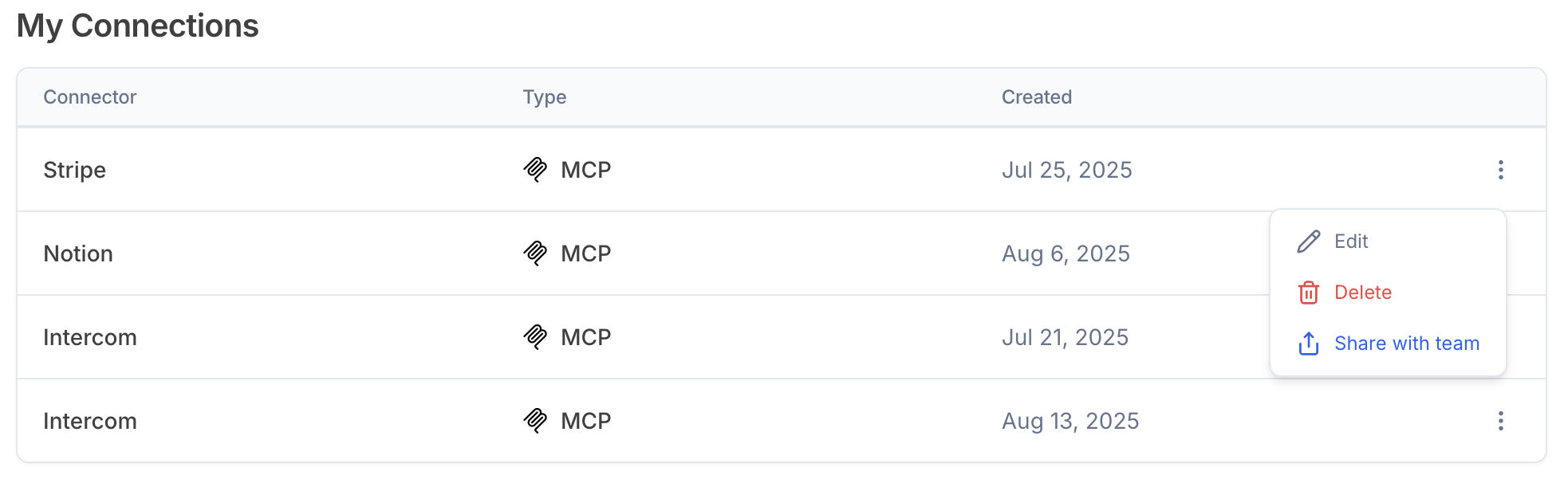 Users on the respective team will be able to select the connection and use it in their own conversations / notebooks within Julius.
## Getting Started
Choose your database type above and follow the setup guide.
***
Reach out to [**team@julius.ai**](mailto:team@julius.ai) for support or to ask questions not answered in our documentation.
Users on the respective team will be able to select the connection and use it in their own conversations / notebooks within Julius.
## Getting Started
Choose your database type above and follow the setup guide.
***
Reach out to [**team@julius.ai**](mailto:team@julius.ai) for support or to ask questions not answered in our documentation.